About Authorized Dealer Code
If you are an IEC holder using ICEGATE for export, Shipping Bills, foreign remittance, refund account or incentive account, AD Code Registration is an important compliance required for smooth import-export transactions. Here’s everything you need to know.
Authorized Dealer Code or AD Code is a 7-digit unique code provided by the bank of the importer or exporter, through which they are expected to conduct their foreign exchange transactions. It is a unique code allotted to traders involved in foreign currency transactions in India.
To obtain AD Code registration, every import-export trader is required to link the AD Code with the Import Export Code (IEC) through the ICEGATE portal for seamless customs clearance of cargo.
Earlier, every IEC holder was required to register AD Code with bank account at every Customs EDI Port where import or export activities were carried out. Under the revised ICEGATE process, AD Code registration with associated bank account is required only once at any one Customs Port. Once approved, the same AD Code is made available system-wide across all Customs locations.

What is Authorized Dealer Code?
Authorized Dealer Code or AD Code is a 7-digit unique code issued by the bank branch authorized to deal in foreign exchange transactions.
It is one of the most essential codes required by importers and exporters for foreign remittance, customs clearance, export documentation, Shipping Bill filing, refund processing and incentive credit.
AD Code links the IEC holder, bank account and authorized dealer bank branch with the Customs system through ICEGATE.
What is AD Code Registration?
AD Code Registration is the process of registering the Authorized Dealer Code and associated bank account details on the ICEGATE portal.
It allows the IEC holder to use the registered bank account for export remittance, refund, drawback, incentive and other customs-linked transactions.
The facility to register and modify bank account details is available online through the ICEGATE platform under Bank Account Management.
What is Bank Account and AD Code Registration Dashboard?
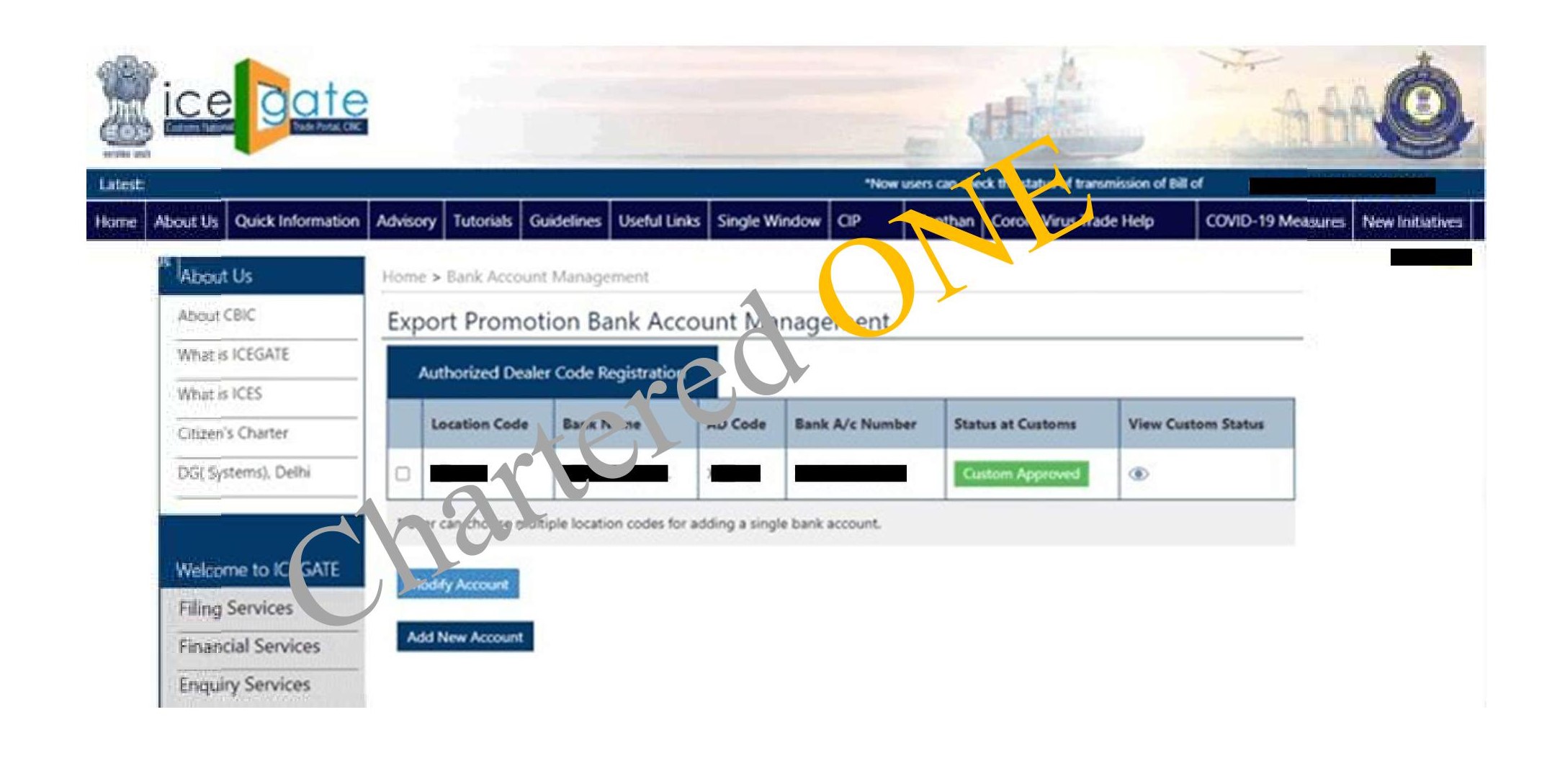
Bank Account and AD Code Registration Dashboard is an online facility available on the ICEGATE Portal under the Financial Services Menu.
The Dashboard displays details of AD accounts, incentive bank accounts, registered accounts, pending requests, place of pendency, rejected requests, status indicators and reasons for rejection.
The user can select Authorized Dealer (AD) Code Registration and view the current registration status such as Approved, Deactivated, Rejected, System Pending, Customs Approved or Customs Rejected.
Which process does the new Dashboard replace?
The new Dashboard replaces the earlier port-wise AD Code registration process.
| Particulars | Earlier Process | Revised Process |
| Registration requirement | AD Code was required to be registered separately at every Customs EDI Port | AD Code registration is required only once at any one Customs Port |
| Port-wise registration | Required at every Port where IEC intended to transact | Once approved, available system-wide across Customs locations |
| Mode of application | Online through ICEGATE ID or physically at Custom House | Online through ICEGATE |
| Approval | Required from officers at each individual Port | Approved by officer assigned under CLK role at Port of application |
| Modification | Handled at respective Port | Modification to be made only at the Port where AD Code was originally registered |
| Status tracking | Limited port-wise follow-up | Dashboard-based real-time tracking |
Importance of AD Code Registration
Custom Clearance of Cargo
Registered AD Code ensures smooth customs clearance of cargo. Without a registered AD Code, the trader may not be able to generate the Shipping Bill, which is an important document for cargo to pass through Customs.
Tracking Foreign Currency Transactions
AD Code is used to track and monitor foreign currency transactions. It helps in ensuring that foreign exchange transactions are carried out through an authorized banking channel and are linked with the IEC holder.
Payment Process
AD Code is essential for exporters and importers to receive and make foreign currency payments. Exporters require AD Code to receive payments from overseas buyers, while importers require AD Code for making payments to foreign suppliers.
Drawback Refund Claims
Drawback refund claims are processed only when the bank account details are registered with AD Code. This means that only those exporters who have registered Authorized Dealer Code with bank account can smoothly process drawback refund claims.
Government Incentives and Benefits
AD Code registration enables direct credit of government benefits, export incentives or subsidies into the exporter’s registered bank account. It helps in linking incentive account details with ICEGATE and the Customs system.
Who can register for AD Code?
Upon Successful registration of the AD Code, your ICEGATE dashboard will show approved at customs.
| User Type | Details |
| Regular Registered User | User holding valid Class-3 Digital Signature Certificate |
| Simplified Registered User | User having valid IEC but not having own digital signature |
| Common requirement | Valid IEC and documents uploaded through e-SANCHIT |
| Portal | ICEGATE |
Applicability of AD Code Registration Dashboard
The Dashboard is applicable for the following purposes:
| Sl. No. | Purpose | Details |
| 1 | AD Code Registration | Registration of Authorized Dealer Code with associated bank account |
| 2 | Foreign Remittance Account | Adding or modifying foreign remittance / AD Code account |
| 3 | Refund Account | Adding or modifying refund account |
| 4 | Incentive Account | Adding or modifying incentive bank account |
| 5 | Status Tracking | Viewing approved, pending, deactivated or rejected status |
| 6 | Modification | Change in bank details or registered AD Code details |
Multiple AD Codes and bank accounts can continue to be registered against an IEC as before.
Availability of Dashboard: Timeline and Process
| Particulars | Details |
| Facility | Bank Account and AD Code Registration Dashboard |
| Portal | ICEGATE Portal |
| Menu path | Financial Services → Bank Account Management → Authorized Dealer (AD) Code Registration |
| Users | IEC holders |
| Purpose | Registration and management of bank accounts and AD Codes |
| Status tracking | Approved, Deactivated, Rejected, System Pending, Customs Approved, Customs Rejected |
| Helpdesk support | Available through phone and email |
| Processing time | Application may take 3 to 5 working days for processing |
The user can login to ICEGATE, navigate to Bank Account Management and view the registration status of AD Code and bank accounts linked with IEC.
Documents required for AD Code Registration
The following documents are generally required to be uploaded on e-SANCHIT for new registration of AD Code with bank account for foreign remittance.
- Bank authorization letter in the prescribed format.
- Copy of IEC.
- Copy of GST Registration Certificate.
- Copy of PAN Card of the Company / Partnership Entity.
- Copy of PAN Card of Authorised Signatory, such as Director / Partner / Proprietor, in the bank account.
- Class-3 Digital Signature Certificate, wherever applicable.
Process of filing AD Code Registration/Modification
Step 1 - Login at ICEGATE
The user is required to login into ICEGATE with ICEGATE Login ID and password. The login should be made using the IEC-linked ICEGATE user credentials.
Step 2 - Open Bank Account Management
After login, the user should click on Bank Account Management from the left panel. The Export Promotion Bank Account Management page will appear on the screen.
Step 3 - Select Authorized Dealer Code Registration
On the Export Promotion Bank Account Management page, the user will get two options in the dropdown.
| Sl. No. | Option |
| 1 | Bank A/c for Export Promotion Incentive |
| 2 | Authorized Dealer Code Registration |
The user has to select Authorized Dealer Code Registration and click on Submit to view the Dashboard for AD Code Bank Account Registration. If location codes are not visible or the Dashboard appears empty with the error “No location added for the user”, the user should check the applicable ICEGATE guidelines before proceeding.
Step 4 - Add New Account
The user should select Add New Account option at the bottom of the Dashboard next to Modify Account option. Add New Account should be selected only if an account is not registered for any registered location previously. If the user has already added a bank account for any registered location, the user may not be able to request bank account addition for other locations under the earlier port-wise process.
Step 5 - Fill Bank Account and AD Code Details
The user is required to fill the following details: Enter the bank name. Select the location from the dropdown. Enter the valid AD Code of the bank branch. Enter the valid IRN number of documents uploaded in e-SANCHIT. Enter the Uploading ICEGATE ID. The AD Code can also be fetched from the AD Code Help Enquiry available on the left panel of the post-login page shown to a registered user.
Step 6 - Processing and Approval
After submission, the application is processed through the ICEGATE system and Customs approval process. The application may take 3 to 5 working days for processing. On approval, the bank account details start reflecting on the Authorized Dealer Code Dashboard.
 Trusted by 2000+ manufacturing businesses across India